Organize client access with a local password manager ideal for IT service providers
An IT provider may administer email, servers, backups, firewalls, NAS devices, VPNs, hosting and workstations for dozens of clients. A single credential can sometimes open an entire infrastructure. When access details circulate in tickets, browsers, files or messages, the risk also affects your clients’ systems.
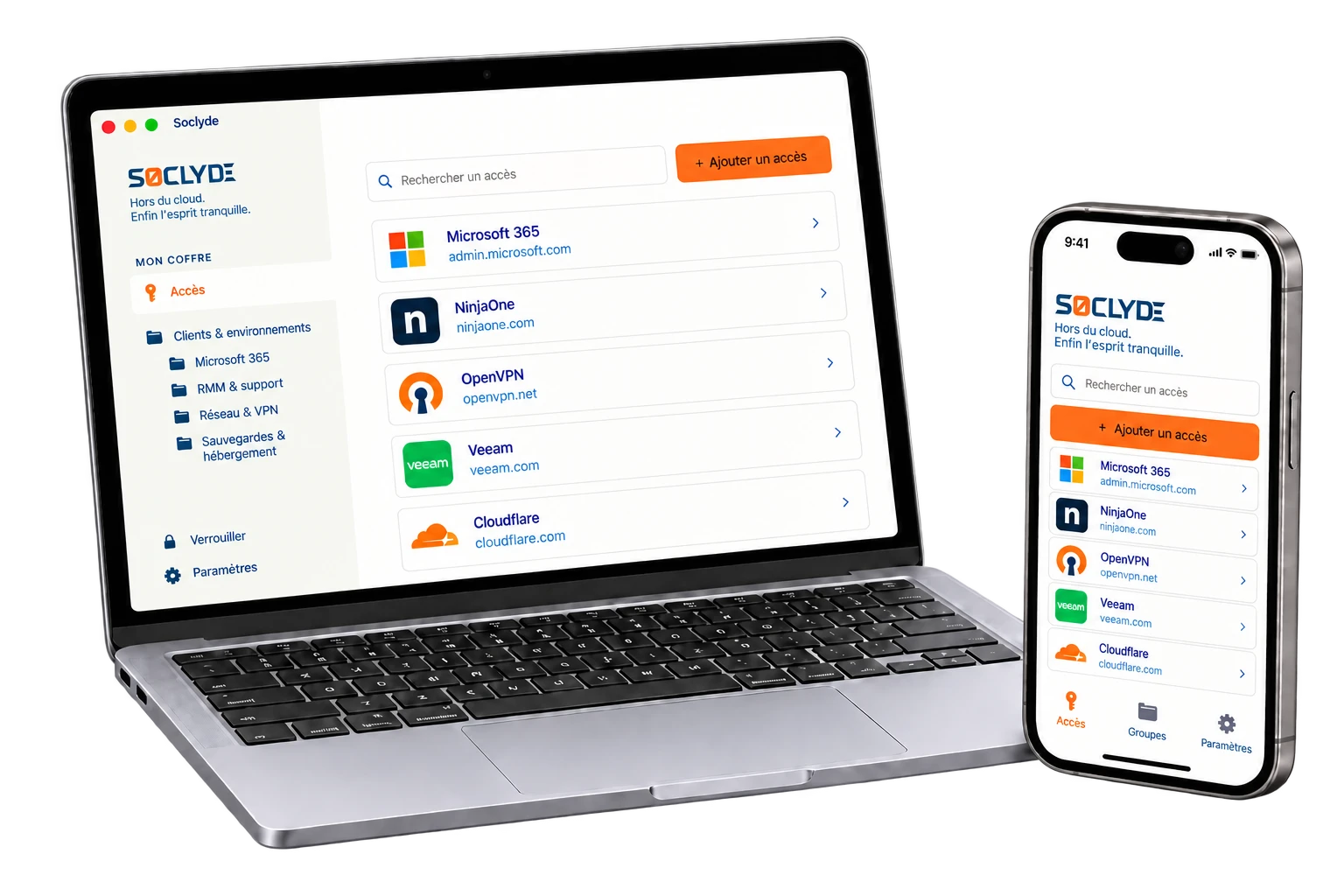
Soclyde helps MSPs, managed service companies and IT maintenance providers organize professional secrets in a local vault for team use. Passwords stay on authorized devices, without a remote vault hosted by Soclyde, with synchronization and permissions suited to technicians and managed clients.
- Vault outside the cloudSecrets stay on your devices
- Team synchronizationWithout a central password server
- Client-based accessEach technician sees their scope
- No dedicated infrastructureNo vault server to administer
- Clear permissionsFor mission and team changes



100% LOCAL0% CLOUD
A technician should not need to know every password for every client
Support technicians, system administrators, network leads, project managers and leadership do not need the same access. Microsoft 365, Google Workspace, RMM, VPN, firewalls, hypervisors, NAS, backups, hosting and registrars should be available according to the client and assignment.
Soclyde organizes shareable credentials in a locally stored vault. Rights can change with contracts, interventions, on-call shifts and technicians, while each person finds the secrets relevant to their scope.
Your technical access on
all your devices.
Soclyde works on Android, iOS, Windows and Mac. Find credentials at the office, at a client site or during on-call work.
Android
Native app
Mobile optimized
iOS
Native app
iPhone and iPad
Windows
Desktop app
System integration
Mac
Native app
macOS optimized
Should client secrets be placed in a third-party cloud vault?
A cloud vault adds infrastructure outside your company to store and synchronize access details.
Cloud services can suit many needs and simplify collaboration. For IT providers, a vault may also contain privileged access to multiple clients: Microsoft 365, VPNs, backups, network equipment or hosting consoles.
A vault containing many administrator accounts concentrates particularly valuable access.
Cloud model (hosted)!
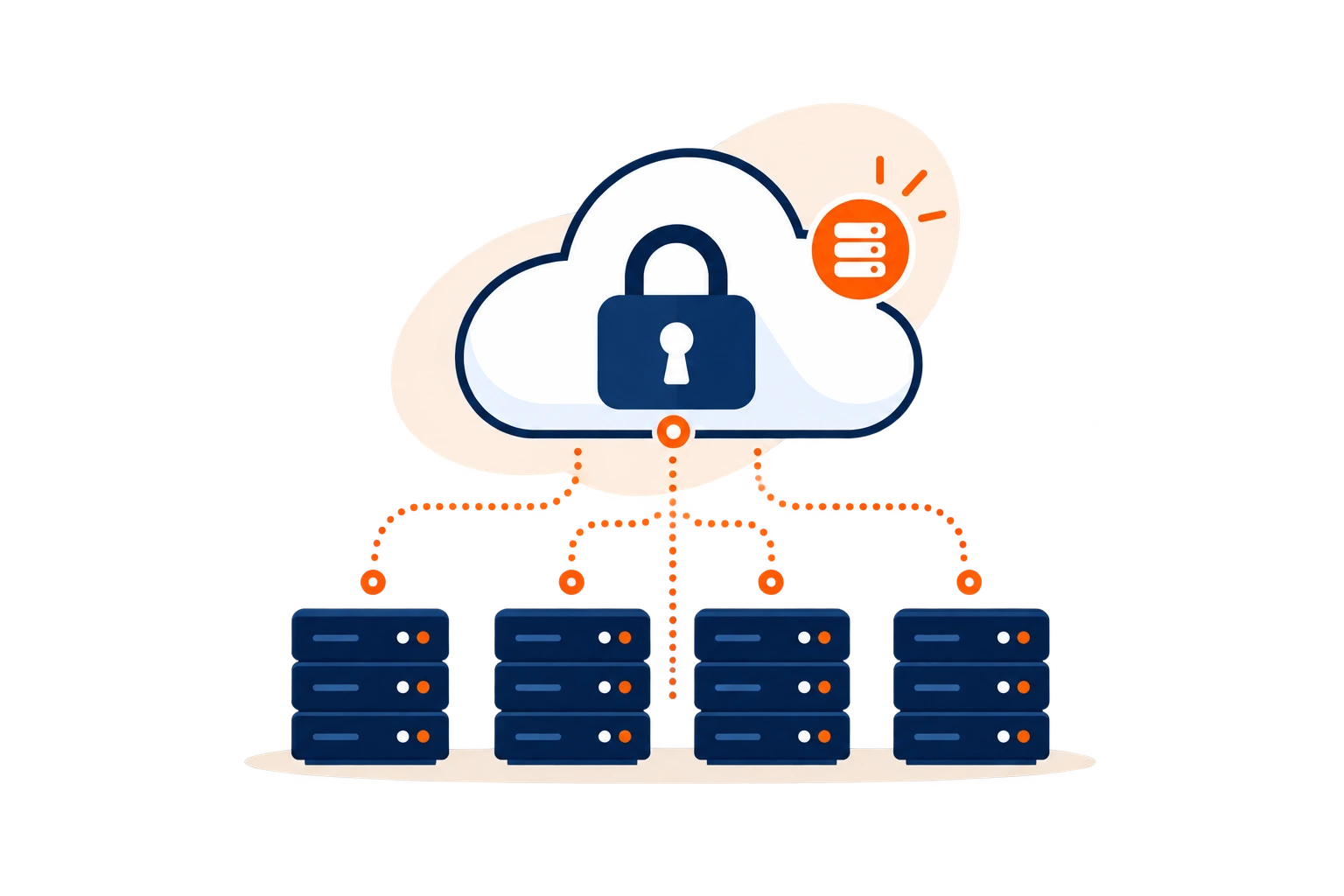
- The vault is stored on infrastructure outside the provider.
- A provider incident may affect access to several clients.
- Hosting adds another party to the technical trust chain.
Concentrated privilegesA vault containing many administrator accounts concentrates secrets in a way that should be considered in your security model.
Soclyde model (local)✓
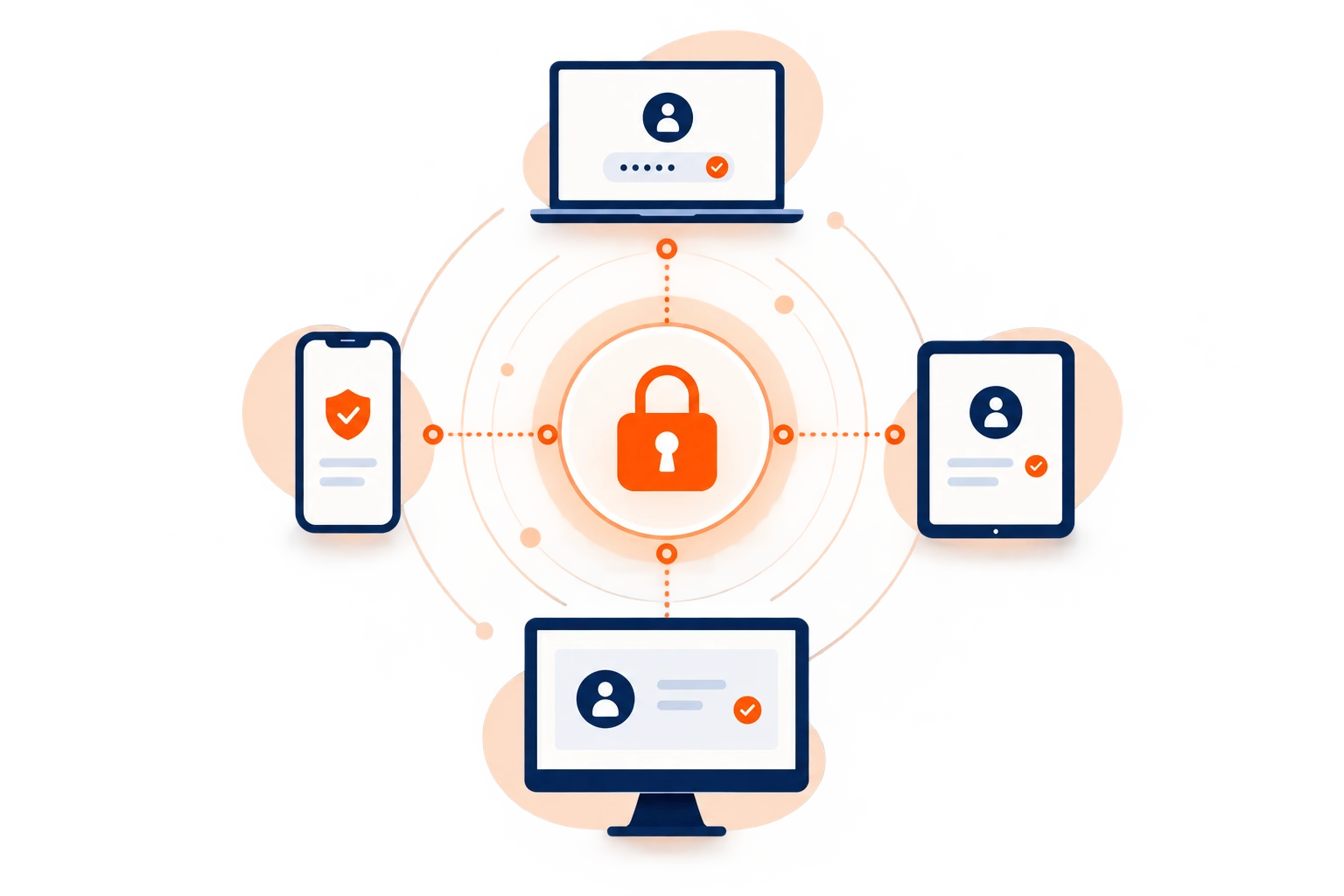
- Passwords stay on the provider’s authorized devices.
- Soclyde does not host a global database of user vaults.
- The provider retains direct control over where client secrets are stored.
The technical vault stays with the IT provider.
Soclyde keeps vaults on authorized devices and synchronizes them directly, without a centralized cloud vault operated by Soclyde.
No centralized database
Secrets on authorized devices
Fewer storage intermediaries
Local control of the vault
An IT provider’s access portfolio
Ten clients can mean a hundred privileged accounts: without a method, access becomes hard to track
Administrator credentials quickly accumulate across clients, infrastructure and support tools.
Without a shared reference, passwords follow technicians’ habits rather than client scopes.
An incident moves to another technician
A VPN password, administrator account or backup login may be missing during a handover.
A shared reference helps the team find necessary secrets.
Access outlives its user
A password copied into a ticket, browser or message may remain known after an assignment ends.
Permissions should follow responsibilities and scope changes.
On-call access should not open every client
The on-call technician needs some accounts, not necessarily every client secret.
Assign access according to client and assignment.
A significant risk across client environments
A compromised privileged credential can become a gateway to a client’s entire system
A Microsoft 365 administrator, VPN account, RMM console, hypervisor or backup tool can grant extensive rights over a client’s users, workstations, data and services.
For an IT provider, protecting passwords therefore means protecting a direct part of several organizations’ infrastructure, often with very high privilege levels.
Sensitive technical access
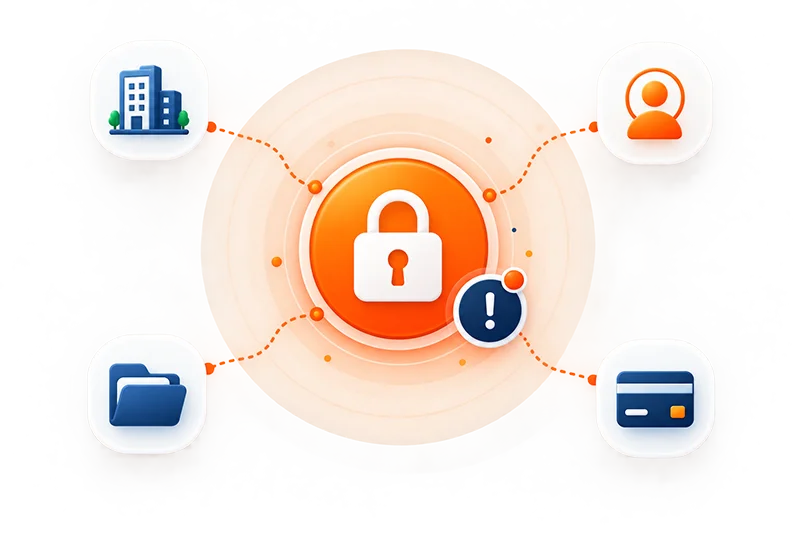
Providers often administer several environments through the same tools.
On-call work, RMM, VPNs and administrator accounts need ongoing permission management. Four situations call for a clear method.
Access control should follow clients, assignments and technicians.
High privileges
A technician may administer several client environments.
Urgent interventions
Outages and on-call shifts test credential availability.
Remote tools
RMM and VPNs can reach client workstations and networks.
Changing teams
Permissions change with contracts and technicians.
Which accounts should IT providers protect?
RMM, Microsoft 365, VPN and backups: convenient accounts can also be powerful
Identify privileged accounts, limit their distribution and know which technicians can use them. Prefer named roles and native protections where available.
Microsoft 365 and Google Workspace
Admin accounts manage users, email, security, licenses and client settings.
Prefer named roles and delegation features.
RMM, PSA and remote access
These tools can reach many workstations and servers from one interface.
Match rights to technicians assigned to contracts and on-call work.
VPN, firewalls, NAS and backups
These accounts open core infrastructure and recovery systems.
Treat them as highly critical secrets and limit distribution.
Hosting, domains and DNS
Registrars, cloud consoles, VPS and SaaS may control essential services.
Organize them by client and assign according to the work.
When a technician leaves or changes client assignments
A technician’s departure should not leave client access unaccounted for
When someone leaves or changes roles, identify the accounts they used, remove permissions that are no longer needed and reassign required secrets.
Returning a computer is not enough if secrets were copied into a browser, ticket or message.
A shared process helps identify what should be closed, changed or reassigned to technicians taking over each client.
Accounts to review before the last day
- List administrator access in use
- Remove permissions that are no longer needed
- Reassign necessary secrets
- Review shared accounts, VPN and recovery methods
- Change genuinely shared secrets when needed
Necessary secrets are reassigned while obsolete rights are removed methodically.
Shared files and scattered copies make it hard to identify the right version and accounts that remain active.
Clients expect providers to manage privileged access and team changes clearly.
Use case
Find client logins before an IT support visit
Before an IT support visit, the technician needs the consoles planned for the client’s environment.
The situation
Across clients and environments, searching an old ticket or asking a colleague for a login can delay diagnosis.
Find the credential
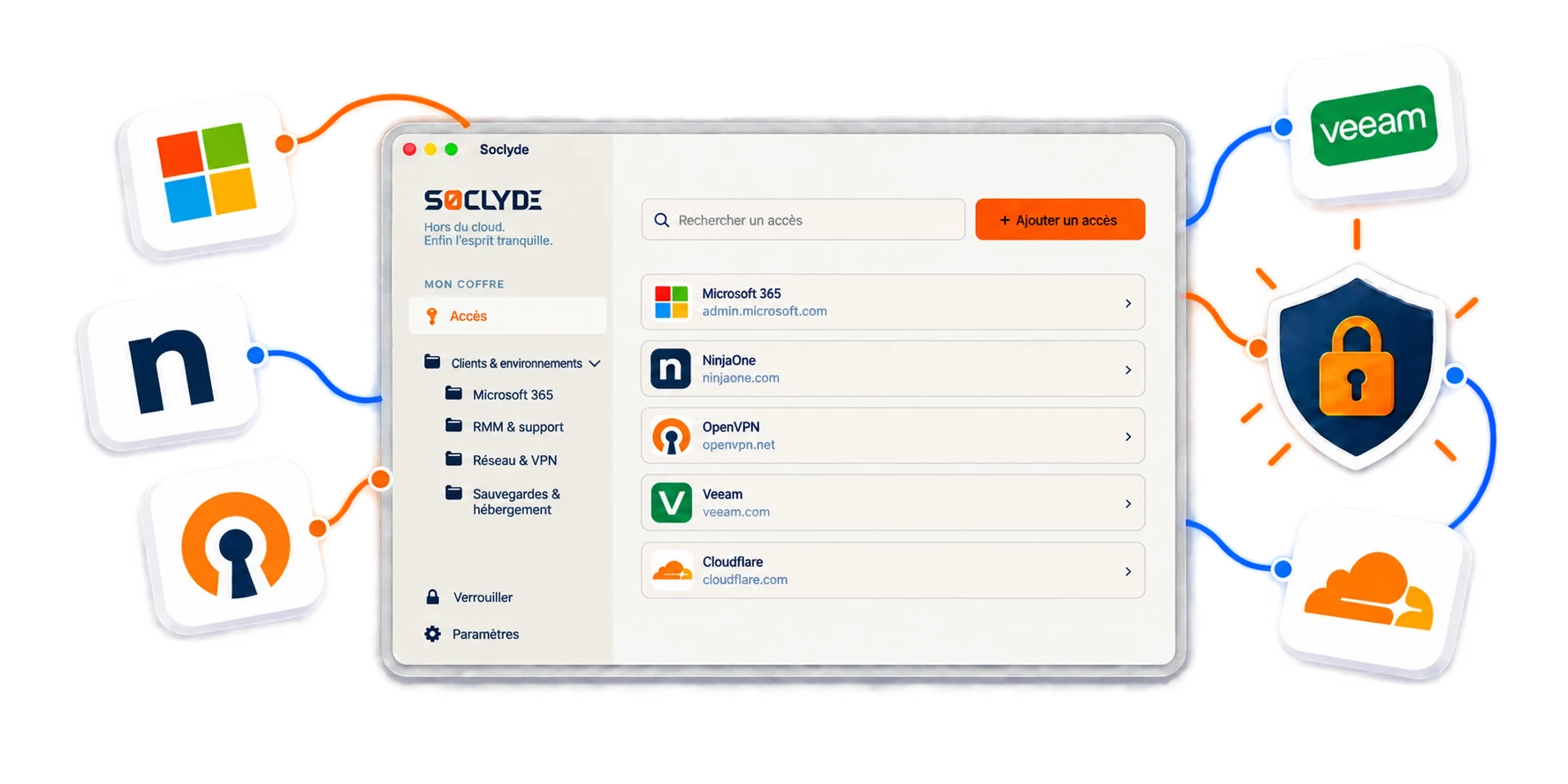
Find intervention credentials in a Soclyde vault organized in groups and available on your devices.
Sign in to the service
With Premium sharing, colleagues can share logins in Soclyde instead of copying them into tickets or chat, and prepare the visit with less friction.

Your passwords stay encrypted in a vault on your devices, without a centralized Soclyde cloud vault. Keep business logins available and better organized day to day.
Choose for your support model
Cloud, self-hosting and local-first: compare dependence and administration too
Soclyde combines a local vault with direct synchronization between authorized devices, without a central server to maintain.
IT providers choose between a cloud vault, a local tool and a self-hosted solution. Each approach has different trade-offs in control, collaboration and maintenance.
| Criterion | KeePass | Bitwarden / LastPass / 1Password |  |
|---|---|---|---|
| Vault stored outside the cloud | ✓ Yes | × No | ✓ Yes |
| Multi-device synchronization | ▲ Needs setup | ✓ Yes | ✓ Direct between authorized devices |
| Vault server to administer | ▲ Depends on setup | ✓ No | ✓ No |
| Shared access with permissions | ▲ Needs setup | ✓ Service-dependent | ✓ Yes |
Cloud simplifies collaboration
Cloud managers make multi-device synchronization easier. In return, secrets depend on infrastructure outside the provider.
A local file needs team processes
KeePass can keep a database local. Across several technicians, the team must also arrange synchronization, backups, versions and permissions.
Soclyde principles
Four principles for managing multiple clients without losing track of secrets
A method should make access easy to find without exposing the entire client portfolio.
Organize by client
Group credentials around the infrastructure and services you manage.
Keep the vault outside the cloud
Secrets stay on authorized devices, without a remote database hosted by Soclyde.
Synchronize without a central server
Authorized devices synchronize directly.
Limit privileges
Adjust permissions as clients, assignments and teams change.
Everyday use cases
On-call work, outages and migrations: have the right access before work begins
The need becomes clear during critical moments: server recovery, restoration, client onboarding or technician handovers.
Client onboarding
Organize credentials gathered at the start of a contract.
Create a client-specific reference.
On-call intervention
Find necessary secrets without relying on a colleague’s memory.
Limit access to the relevant scope.
Migration or takeover
Group administrator, DNS, hosting and backup accounts needed for the project.
Give the team relevant access without opening the whole portfolio.
Temporary support
Assign access needed for the assignment, then remove obsolete permissions.
Make rights follow responsibilities.
Change of client lead
Keep necessary secrets available to the technician taking over the contract.
Handover no longer relies only on the previous contact.
Portfolio growth
Keep one shared method as systems and accounts are added.
Avoid passwords accumulating in tickets.
Provider responsibility and privileged access
Your clients’ credentials are part of your security scope
IT providers may have privileged access to client email, workstations, servers, backups, networks and cloud consoles.
Know which technician has which access, where each secret is stored, how it is shared and when a permission should be removed.
Local architecture alone does not guarantee compliance or overall security. It can reduce the number of intermediaries hosting the vault.
What local storage helps control
- Vault not hosted by Soclyde
- Clearer separation of access by client
- Fewer secrets copied into tickets and messages
- Clearer permissions as teams change
The GDPR does not prohibit cloud storage and is not determined solely by where a password is stored. Secure devices, document permissions and use each service’s native protections.
Prefer named accounts, roles, MFA and audit logs where available. Soclyde complements these controls for secrets that genuinely need to be stored or shared.
Compare models for an MSP
Compare password vault models for an IT provider
SoclydeVSKeePass
What to know about KeePass
KeePass keeps a local database and lets users control its location.
Teams still need to arrange synchronization, backups, rights and file versions.
The Soclyde approach
Soclyde keeps the vault on authorized devices.
Direct synchronization avoids managing a shared file and vault server.
SoclydeVSBitwarden
What to know about Bitwarden
Bitwarden offers collaboration through its cloud or a self-hosted deployment.
Self-hosting requires a server, updates, backups and monitoring.
The Soclyde approach
Soclyde keeps the vault on authorized devices.
There is no central password server to operate.
SoclydeVSLastPass
What to know about LastPass
LastPass uses a cloud architecture to synchronize devices.
An IT provider may prefer to keep client secrets directly in its own environment.
The Soclyde approach
Soclyde does not host a global database of user vaults.
Authorized devices synchronize credentials without a cloud vault hosted by Soclyde.
SoclydeVS1Password
What to know about 1Password
1Password offers a collaborative experience around a cloud vault.
This model suits many organizations.
The Soclyde approach
Soclyde is for teams that want to collaborate without outsourcing their vault.
Permissions and synchronization are organized around authorized devices.
IT service provider FAQ
Common questions from MSPs and managed service providers
Which password manager should an IT provider choose?
Choose a tool that organizes access by client, supports teamwork and limits permissions to the technicians concerned. Soclyde keeps the vault on authorized devices, without a centralized cloud vault.
How should passwords for multiple clients be organized?
Group access by client, environment and criticality. Assign only the rights needed for each assignment, and prefer named accounts and native roles where available.
How can Microsoft 365 administrator accounts be protected?
Use named accounts, enable multi-factor authentication and apply least privilege. Avoid shared accounts where the platform offers suitable delegation.
Where should VPN, firewall, NAS and RMM passwords be stored?
Keep necessary secrets in a dedicated manager, with access limited to relevant people. Avoid tickets, unencrypted documents and internal conversations.
Can an IT provider store client access details?
Check your contracts, internal policies and the rules of the services involved. Strictly personal accounts should remain individual; prefer available delegation features.
What should happen when a technician leaves?
Review the access they used, remove permissions that are no longer needed and change genuinely shared secrets when necessary. Reassign required access to the people taking over those clients.
Can an offline vault work for a remote team?
Authorized devices can synchronize their vaults directly. Also secure devices, remote access procedures, backups and multi-factor authentication.
How should passwords be managed during on-call shifts?
Prepare the necessary access in advance and limit it to the on-call scope, so technicians can find the right secrets without opening the entire client portfolio.
How can RMM and remote access credentials be protected?
Use named accounts, MFA, limited roles and audit logs where available. Secrets that must be shared should stay in a dedicated vault with restricted access.
Is KeePass suitable for an IT services company?
KeePass can meet local-storage needs. A team still has to arrange synchronization, backups, permissions and file sharing itself.
Are passwords in documentation or tickets enough?
Not as a primary method. Tickets and documentation systems serve other purposes and can expose secrets more broadly. Sensitive credentials belong in a dedicated manager.
How should least privilege be applied to a password vault?
Give each technician only the access needed for their clients and assignments, then remove permissions when their scope changes.
Does Soclyde require a server to administer?
No. The vault stays on authorized devices and synchronizes without a central password server to install or maintain.
Where are passwords hosted with Soclyde?
Soclyde does not host the vault: it stays on authorized devices. This differs from a traditional cloud password manager.
Does Soclyde replace a PAM?
No. A PAM may still be needed in complex or highly regulated environments. Soclyde organizes secrets that need to be stored or shared, alongside named accounts, MFA and native roles.
You administer your clients’ systems. Keep control of the keys that open them.
Group administrator, RMM, VPN, backup, hosting and other client secrets in a vault outside the cloud, designed for technicians, on-call work and handovers.
Soclyde keeps passwords on authorized devices, synchronizes them directly and organizes permissions without central infrastructure.
- Organize access by client and scope
- Vault outside the cloud on authorized devices
- Synchronize technical workstations
- Permissions that follow assignments
Microsoft 365, RMM, VPN, firewalls, NAS, backups, hosting and domains shape everyday IT provider work.