
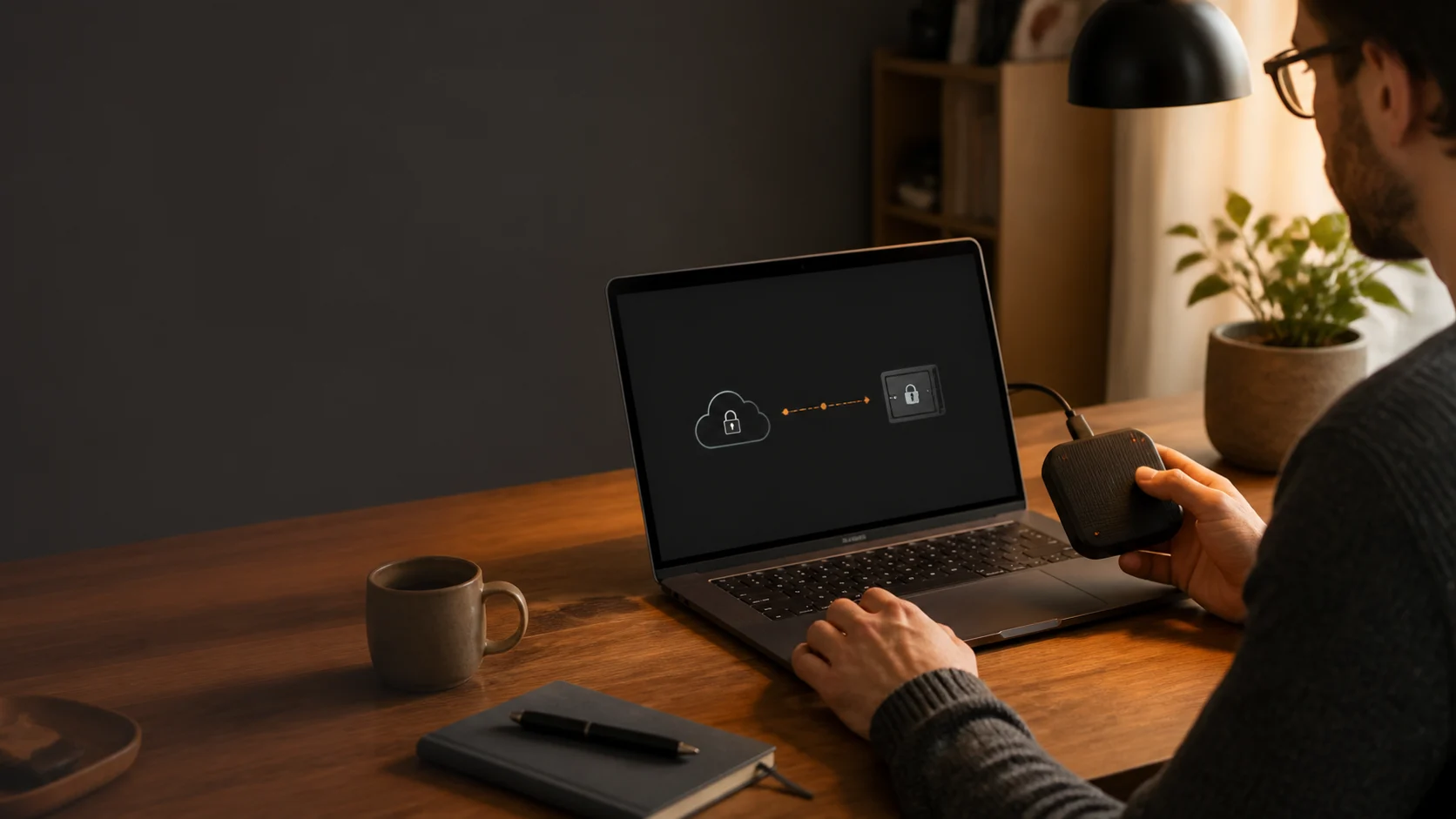
Moving password managers is not a matter of copying a file and closing the old account. A vault can contain critical credentials, recovery codes, secure notes, and attachments. A reliable migration is gradual, verifiable, and reversible.
This guide covers a move from a cloud password manager to a local-first solution such as Soclyde. It does not replace the documentation of the service you are leaving or your organisation’s security rules.
1. Prepare the migration
Choose a quiet time and a trusted device. Update the operating system, lock your session, and confirm that you can access your recovery email and second factor.
Make a short inventory of what must not be missed:
- administrator, email, banking, hosting, and backup accounts;
- recovery codes, API keys, secure notes, and attachments;
- shared vaults, authorised members, and access rules;
- currently authorised devices and open sessions.
Use the official export instructions from the old manager and the documented Soclyde import path. Plan a window during which the old vault remains available as a fallback.
2. Export without multiplying copies
Export is often the most sensitive moment: some formats contain secrets in plain text. If possible, disable automatic syncing for the working folder. Never put the export in a shared drive, an email thread, or an unapproved storage service.
- Export from the trusted device in a format supported by the target solution.
- Save the file in a temporary protected location.
- Record the export time and expected categories without copying secrets into your notes.
- Do not change the original until import and checks are complete.
Prefer an encrypted export when the service supports one. In every case, treat the file as a copy of the vault and strictly limit the people and devices that can access it.
3. Import into the local vault
Create the local vault first and protect it with a passphrase that is not used anywhere else. In Soclyde, start the import using the documented format, then keep the old manager available only for comparison.
Do not try to clean the entire vault during import. A separate, traceable import makes it easier to understand what transferred. Instead, note expected conversions: custom fields, folders, duplicates, attachments, and shared vaults may be handled differently depending on the source format.
4. Verify before switching over
Verification should cover a representative sample and every critical access. For each checked item, compare the service name, username, URL, secret, notes, recovery codes, and attachments.
Start with:
- your primary email and recovery accounts;
- administration and hosting accounts;
- financial services and tools containing customer data;
- shared vaults and each member’s permissions.
Open several sites using the local vault, test offline search if available, and make sure duplicate entries have a clear owner. The import is not complete until a critical item has been found and successfully used.
5. Back up and test rollback
A useful backup is more than a second file. It must be encrypted, identified, available to the right people, and restorable.
- Create an encrypted local backup after verification.
- Keep it on media separate from the primary device.
- Document its location, date, owner, and emergency access procedure.
- Test a restore in the intended environment without exposing the vault to a third-party service.
Keep the old vault read-only for a defined period, for example a few days or one complete operational cycle. If data is missing, you should be able to return to the previous step without rushing into another export.
6. Revoke the old service
Once checks and recovery are successful, complete the migration in this order:
- Replace secrets that were exposed in plain text, copied to an uncontrolled location, or shared with someone who should no longer have access.
- Sign out sessions and remove authorised devices from the old service.
- Delete extensions, applications, and access tokens that are no longer needed.
- Delete the temporary export and check the trash, synced folders, and automatic backups.
- Disable or close the old account according to its official procedure, keeping only records required for contractual reasons.
Revoking the provider does not revoke sessions for the services stored in the vault. For sensitive access, also review active sessions and rotate secrets when the risk warrants it.
7. Keep control over time
A successful migration ends with a simple routine: periodic backup, restore testing, authorised-device review, and rapid removal of obsolete access. Soclyde helps keep an encrypted vault under local control; it does not replace MFA, patching, or endpoint management.
Keep a completion record with the date, reviewer, approximate number of imported items, corrected issues, and next test date. This gives you evidence of control without retaining the secrets themselves.
Completion checklist
- [ ] The export was created on a trusted device.
- [ ] The local vault contains critical access and associated data.
- [ ] A sign-in test and an offline test were completed.
- [ ] An encrypted backup was created and restored successfully.
- [ ] Sessions, devices, and tokens from the old service were revoked.
- [ ] Temporary files, trash, and synced copies were deleted.
- [ ] The next vault and backup review is scheduled.